
Google’s John Mueller recently answered a question about phantom noindex errors reported in Google Search Console. Mueller claimed that these reports could be true.
Noindex in Google Search Console
A Noindex Robots statement is one of the few commands that Google must obey, one of the few ways a site owner can exert control over Googlebot, Google’s indexer.
Still, it is not entirely uncommon for Search Console to report that a page cannot be indexed due to a noindex directive that appears to contain no noindex directive, at least not one that is visible in the HTML code.
When Google Search Console (GSC) reports “Submitted URL marked ‘noindex'”, it is reporting a seemingly contradictory situation:
- The website asked Google to index the page via an entry in a sitemap.
- The page has sent a signal to Google not to index it (via a noindex statement).
It’s a confusing message from Search Console that a page is blocking Google from indexing it, even though the publisher or SEO can’t observe this at the code level.
The person who asked the question posted on Bluesky:
“For 4 months the site has been experiencing a noindex error (in the ‘Robots’ meta tag) that refuses to disappear from Search Console. There is no noindex on either the site or in the robots.txt file. We’ve already looked at this… What could be causing this error?”
Noindex only appears for Google
Google’s John Mueller answered the question and shared that the pages he examined where this happened always showed a noindex to Google.
Müller replied:
“In the cases I’ve seen in the past, there was actually a noindex that only sometimes showed up only on Google (which can still be very hard to debug). However, feel free to DM me some sample URLs.”
Although Mueller didn’t elaborate on what might be going on, there are ways to troubleshoot this issue and figure out what’s going on.
How to fix phantom noindex errors
There may be some code somewhere that causes a noindex to appear only for Google. For example, it may happen that a page once had a noindex and a server-side cache (like a caching plugin) or a CDN (like Cloudflare) has cached the HTTP headers from that point in time, which in turn would result in the old noindex header being shown to Googlebot (as it visits the site frequently) while a new version is served to the site owner.
Checking the HTTP header is easy. There are many HTTP header checkers like this one at KeyCDN or this one at SecurityHeaders.com.
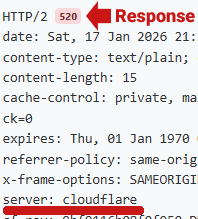
A 520 server header response code is sent by Cloudflare when it blocks a user agent.
Screenshot: 520 Cloudflare response code
Below is a screenshot of a 200 server response code generated by Cloudflare:
Screenshot: 200 server response code
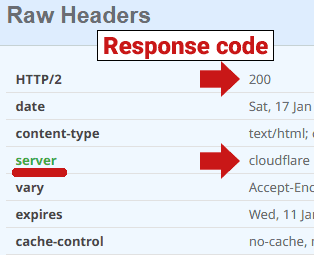
I checked the same URL with two different header checkers, with one header checker returning a server response code 520 (blocked) and the other header checker sending a 200 (OK) response code. This shows how differently Cloudflare can react to something like a header checker. Ideally, try using multiple header checkers to check for a consistent 520 response from Cloudflare.
In the situation where a web page displays something exclusively to Google that is otherwise not visible to anyone viewing the code, you need to get Google to view the page for you using a real Google crawler and from a Google IP address. You can do this by pasting the URL into Google’s Rich Results Test. Google sends out a crawler from a Google IP address and if something on the server (or a CDN) shows a noindex, it is intercepted. In addition to the structured data, the Rich Results test also provides the HTTP response and a snapshot of the web page that shows exactly what the server shows Google.
When you run a URL through the Google Rich Results Test, the query is:
- Comes from Google’s data centers: The bot uses an actual Google IP address.
- Passes reverse DNS checks: When the server, security plugin, or CDN checks the IP, it resolves back to googlebot.com or google.com.
If the page is blocked by noindex, the tool cannot provide structured data results. It should show the status “Page not authorized” or “Crawling failed”. If you see this, click a link for “View Details” or expand the error section. You should see something like “Robots meta tag: noindex” or “noindex” detected in the “Robots” meta tag.
This approach does not send the GoogleBot user agent but uses the Google-InspectionTool/1.0 user agent string. That is, if the server block occurs through an IP address, it will be intercepted by this method.
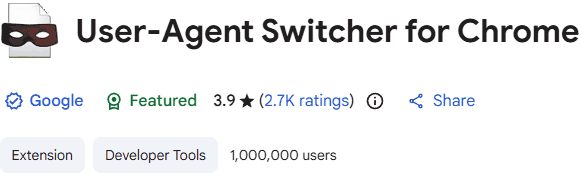
Another aspect to consider is in case a fraudulent noindex tag was written specifically to block GoogleBot. You can still spoof (mimic) the GoogleBot user agent string using Google’s own User Agent Switcher extension for Chrome, or configure an app like Screaming Frog to identify itself with and intercept the GoogleBot user agent.
Screenshot: Chrome User Agent Switcher
Phantom noindex error in Search Console
Diagnosing these types of errors can be tedious, but before you throw your hands up in the air, take some time to see if any of the steps outlined here will help identify the hidden reason responsible for this problem.
Featured image by Shutterstock/AYO Production
Follow us on Facebook | Twitter | YouTube
WPAP (907)
